 FreeLLM
Kaggle's free GPU for AI models: what you get, step by step, with real numbers
Two free T4 cards, 29 GB of RAM and 30 hours a week. How to run Qwen3.8-27B on Kaggle with Ollama, how fast it is, and the limits and rules to read first.
If your computer has no strong graphics card, Kaggle lends you two for free. A Kaggle notebook with the T4 x2 option can run a 27-billion-parameter model like Qwen3.8-27B, with no card of your own and no subscription.
This guide shows the steps, the speed we measured and the limits. Kaggle is a place to test models. It runs in a session that ends, and its rules restrict what you can do with it, so read the last sections before you build anything on top of it.
In short
- Kaggle's T4 x2 option gives you 2 NVIDIA T4 cards, 4 CPU cores and 29 GB of RAM.
- You get about 30 hours of GPU time per week, and one session lasts at most 12 hours.
- Qwen3.8-27B at 4-bit is an 18 GB download with an Apache 2.0 license.
- On Kaggle it writes about 13 tokens per second. A home RX 7900 XTX writes 50 to 66.
- Everything here is for short tests. Kaggle's policy limits other uses, and the model runs on Kaggle's machines, not on yours.
What you get for free
These figures come from Kaggle's notebook documentation and its GPU tips, as read on 31 October 2026.
| Item | Kaggle T4 x2 |
|---|---|
| Graphics cards | 2 NVIDIA T4, 15 GB each in our session |
| CPU | 4 cores |
| RAM | 29 GB, 31 GB in our session |
| One session | up to 12 hours |
| GPU time per week | 30 hours, sometimes more |
| Saved disk space | 20 GB in /kaggle/working |
Free GPUs are limited, so at busy times you may wait in a queue. Your account may also need a verified phone number before the GPU option works.
Two cards are different from one big card
Videos often call this a 32 GB server. Our session showed about 15 GB per card, and that memory sits on two separate cards.
Ollama's FAQ explains what happens. If a model fits on one GPU, Ollama loads it there. If it does not fit, Ollama spreads it across all the GPUs.
We measured how much memory Qwen3.8-27B really takes on a 24 GB RX 7900 XTX. It used 18.1 GB with a 4K context and 20 GB with a 32K context. Ollama's own report said about 16 GB, so check the real figure with nvidia-smi.
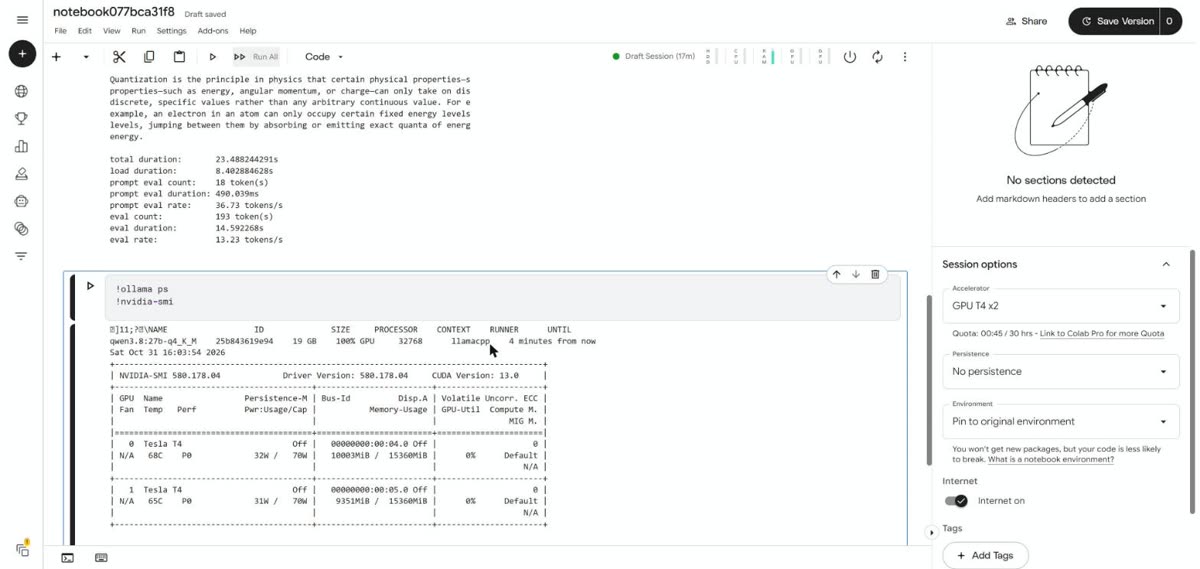
That model is too big for one T4, so on Kaggle it must split across both, and it did. With a 4K context the two cards held 8.8 GB and 8.1 GB. With a 32K context they held 9.8 GB and 9.1 GB. Ollama reported the model as 100% on the GPU every time.
Which model to pick
We use Qwen3.8-27B, the official build in the Ollama library. It scores 1436 in blind Arena votes, 106th of 419 chat models on 28 October 2026, and its Apache 2.0 license is simple.
Many tutorials pick uncensored builds. We avoid them here. They come from unknown uploaders, and Kaggle's policy lists the creation of harmful or offensive content as an abuse of its resources.
For other models, compare memory and scores on our free ranking and try your card in the Run at home simulator.
Step by step
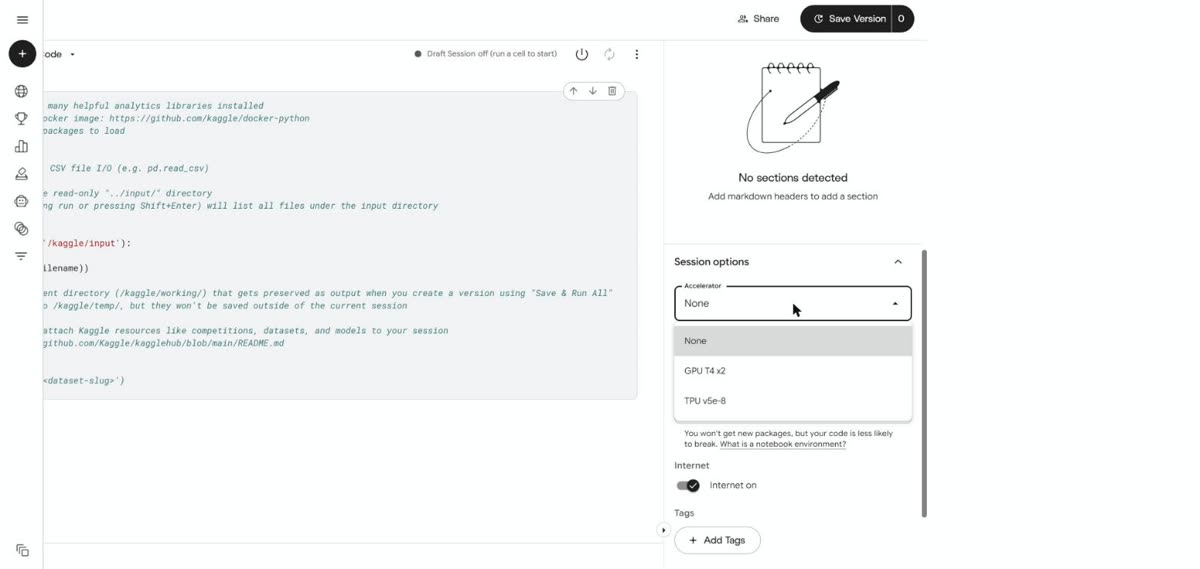
1. Create the notebook. On Kaggle, choose Create and then New Notebook. Open Settings, set the Accelerator to GPU T4 x2 and turn Internet on. Keep the notebook private.
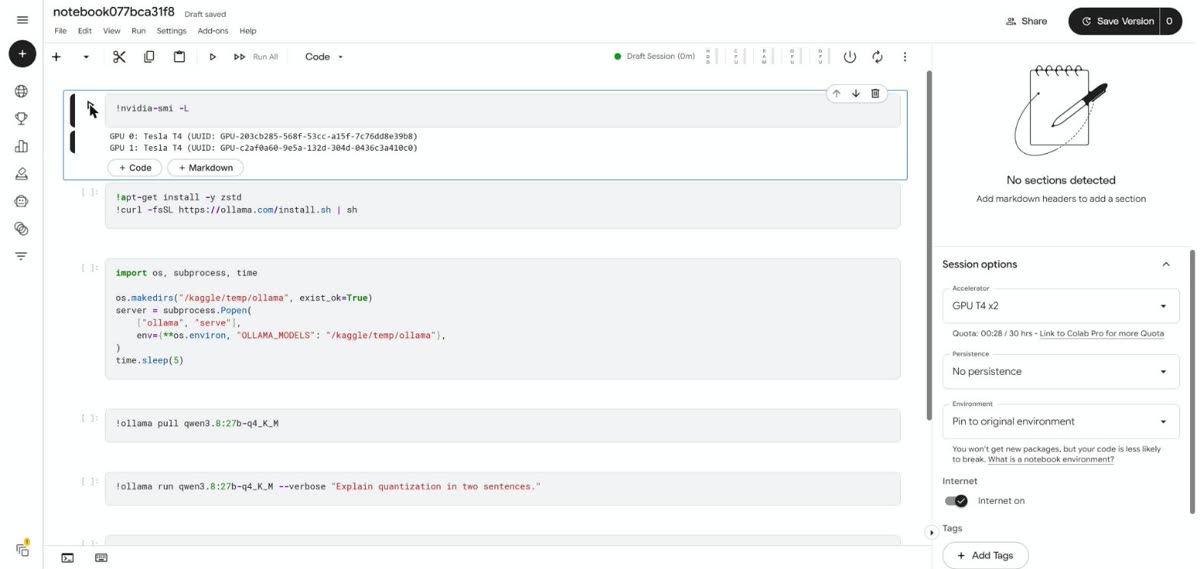
2. Check the cards. Run this in a cell. You should see two lines.
!nvidia-smi -L
3. Install Ollama. This runs the official installer from ollama.com. A red warning about the GPU appears during the install. It is normal, and the last line should say Install complete.
!apt-get install -y zstd
!curl -fsSL https://ollama.com/install.sh | sh
4. Start Ollama. It keeps running in the background. The model goes to a temporary folder because /kaggle/working stops at 20 GB. The two DEVNULL lines hide Ollama's log. Without them, red messages fill your next cells and the page looks broken even when it works.
import os, subprocess, time

os.makedirs("/kaggle/temp/ollama", exist_ok=True)
server = subprocess.Popen(
    ["ollama", "serve"],
    env={**os.environ, "OLLAMA_MODELS": "/kaggle/temp/ollama"},
    stdout=subprocess.DEVNULL,
    stderr=subprocess.DEVNULL,
)
time.sleep(5)
5. Download the model. On our run this took under 3 minutes.
!ollama pull qwen3.8:27b-q4_K_M
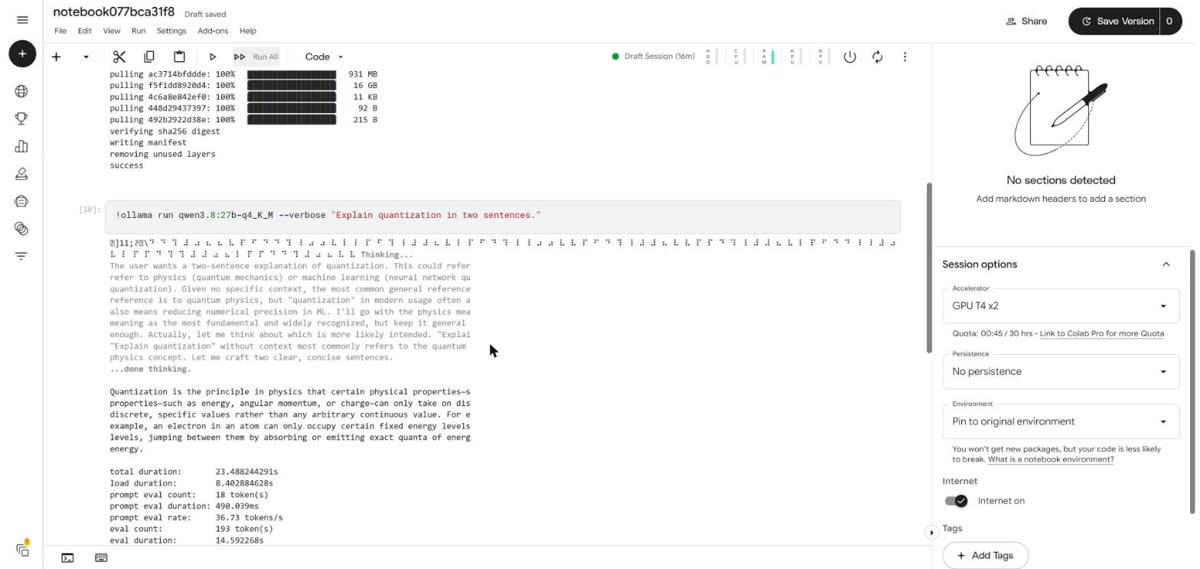
6. Ask it something and read the speed. The --verbose option prints the tokens per second. The model thinks first, so you will see its reasoning before the answer. In our run this command gave 13.01 tokens per second.
!ollama run qwen3.8:27b-q4_K_M --verbose "Explain quantization in two sentences."
The first answer can take a minute and a half, because the model has to load.
7. Check that it used the GPUs. The first command should show the model on the GPU. The second shows the memory on each card.
!ollama ps
!nvidia-smi
8. Stop the session. Press Stop Session when you finish. A session left open keeps using your weekly hours.
How fast it is
We ran the same test on both machines: the same model, 256 tokens per answer, three runs of each prompt, and the median result. Our home PC had other apps open.
| Test | Kaggle T4 x2 | RX 7900 XTX 24 GB |
|---|---|---|
| Short question | 13 tokens/s | 54 tokens/s |
| Code | 13 tokens/s | 66 tokens/s |
| Long text, about 2,800 tokens | 13 tokens/s | 50 tokens/s |
| Reading that long text | about 370 tokens/s | about 850 tokens/s |
| Loading the model | 90 s the first time, then about 10 s | about 20 s |
| First word on screen | about 0.6 s | about 0.5 s |
The home card writes about four times faster. On Kaggle, 13 tokens per second means an answer of 256 tokens takes about 20 seconds. That is slow for daily work but fine for testing a model.
On both machines, a context of 32K ran as fast as a context of 4K. All 36 runs on Kaggle finished with no errors, and the whole test used 28 minutes of the weekly 30 hours.
Using it from your own PC
You can reach a notebook from your computer with a tunnel, so your apps can use the model. We left this out of the main steps for three reasons.
A Cloudflare Quick Tunnel is public, and anyone with the address can use your model unless you add a password yourself. Cloudflare says Quick Tunnels are for testing and development, and that they do not support Server-Sent Events, so streamed answers may fail in some apps.
Kaggle's rules also matter more here, as the next section explains. For that reason we did not test a tunnel on Kaggle, and we have no speed figures for it.
Avoid connecting a coding agent that can run commands on your computer. Your files and prompts would travel through the tunnel to a machine you do not control.
Limits and rules
Kaggle's Acceptable Use Policy lists "server farming" and "activity unrelated to ML data science" among the abuses of its resources. Its terms allow personal, non-commercial use, and one account per person.
Neither page mentions tunnels. Our reading: testing a model for a few hours fits, and using Kaggle as a free API for your daily work is a risk for your account. This is our opinion, not legal advice.
A few practical limits follow from that:
- An idle session closes on its own. Kaggle's pages give two figures, 20 and 60 minutes, so plan for the shorter one.
- The download is lost when the session ends, so you repeat step 5 next time.
- Do not send private data. It runs on someone else's machine.
When to skip Kaggle
If you only want to chat, the free AI chats on our ranking are simpler and many score higher. If your card or Mac has enough memory, running at home has no quota and no session limit. Our guide on how much GPU memory you need shows what fits.
Kaggle makes sense when you want to test a model that is too big for your own machine, for a few hours, before you decide to buy hardware.
Is Kimi K3 (Max) the right model for you?
See every free model ranked by blind human votes, with size, memory and speed on a home GPU.