 FreeLLM
Cómo instalar Ollama y ejecutar IA en tu propio PC, con números de velocidad reales
Instala Ollama en Windows, descarga un modelo de 4B y chatea sin conexión. Cada comando, lo que deberías ver y la velocidad que medimos con y sin GPU.
Ollama is a free program that runs AI models on your own computer. Your prompts stay on your machine, you need no account, and the model keeps working without the internet.
This guide shows every step on Windows, what should appear on screen, and the speed we measured on 1 November 2026 with Ollama 0.40.13.
In short
- Install Ollama with one official command, then download a model with
ollama pull. - We use Qwen3.5 4B, about 3 GB on disk.
- On a Radeon RX 7900 XTX it wrote about 133 tokens per second.
- With the processor alone, a Ryzen 9 9950X3D, it wrote about 15.
- In memory it took 8.1 GB, far more than the file size.
Step 1: Open the download page
Go to ollama.com and click Download at the top right. Make sure Windows is selected.
Step 2: Install Ollama
Press the Windows key, type PowerShell and press Enter. Paste the official command from the download page and press Enter.
irm https://ollama.com/install.ps1 | iex
If you prefer a normal installer, click Download manually on the same page. Ollama was already installed on our PC, so we did not run this command again.
Step 3: Check that it works
Close PowerShell, open it again and run this command. You should see a version number.
ollama --version
Step 4: Pick a small model
On Ollama's site, open Models and search for Qwen3.5. The list of versions shows every size. We chose the 4B version.
We tried the 0.8B version first. It kept reasoning in circles on simple questions, so the smallest model is not always the easiest one to use.
Step 5: Download the model
ollama pull qwen3.5:4b
The download took 37 seconds on our connection. Wait for the word success. After that, the model works without the internet.
Step 6: Ask a question
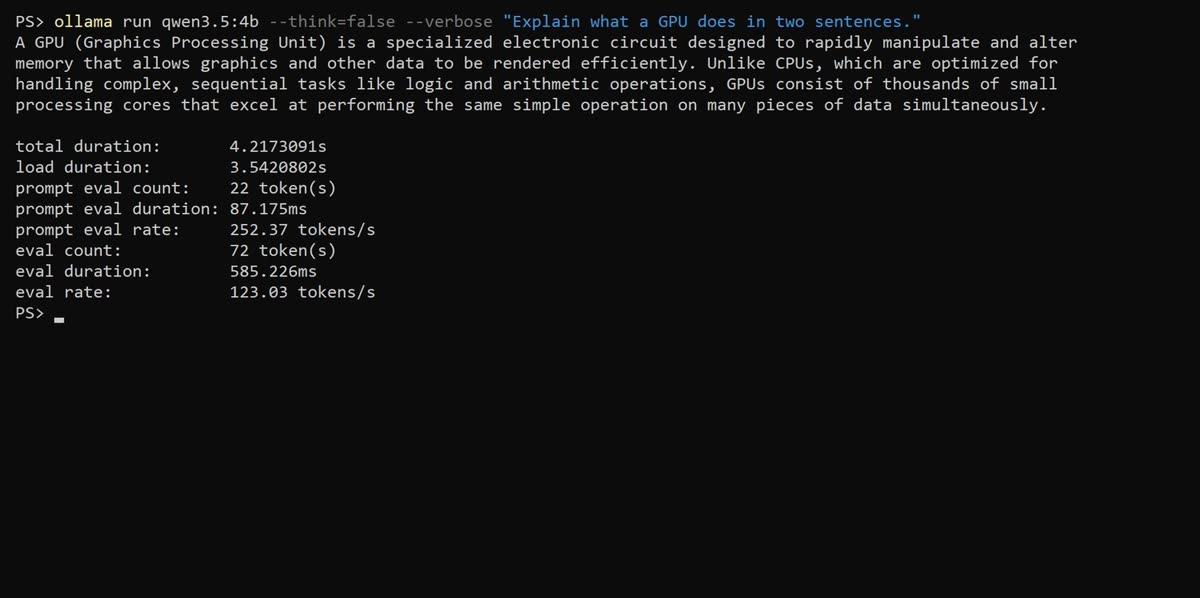
ollama run qwen3.5:4b --think=false --verbose "Explain what a GPU does in two sentences."
The --think=false option hides the model's long reasoning, and --verbose prints the speed. Look at the last line, eval rate.
How fast it is
We ran three tests on each setup, with answers of up to 256 tokens.
| Setup | Velocidad |
|---|---|
| Radeon RX 7900 XTX, 24 GB | about 133 tokens/s |
| Ryzen 9 9950X3D, processor only | about 15 tokens/s |
The graphics card was about nine times faster. These are fast parts, so a normal PC will be slower. To see what fits your hardware, try our Run at home simulator.
Step 7: Check that it uses your GPU
Run this while the model is loaded.
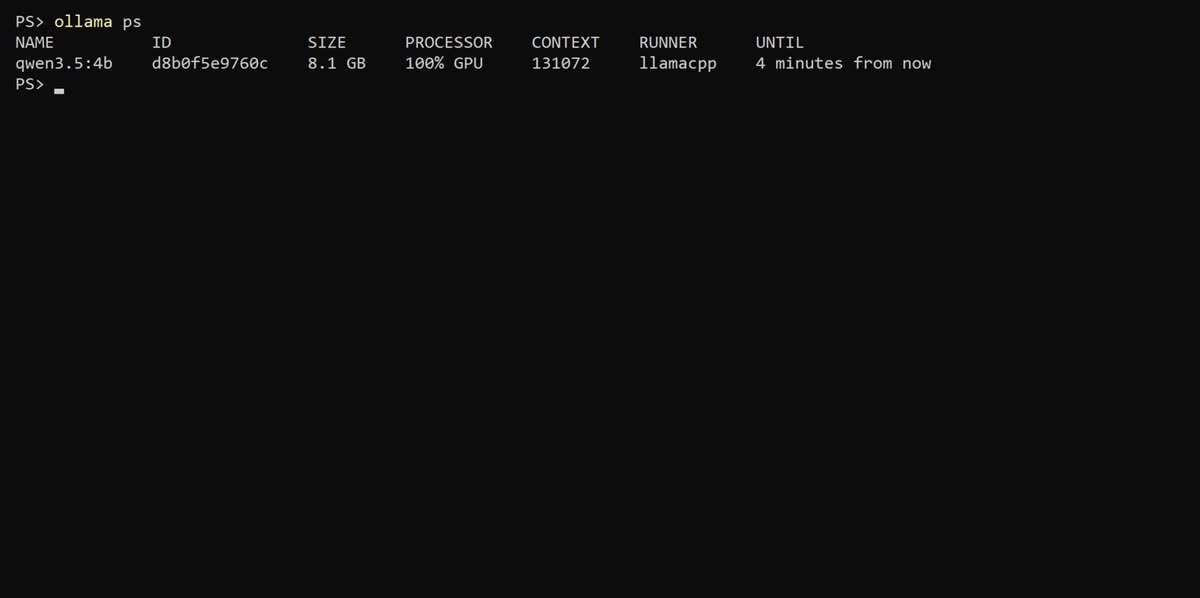
ollama ps
Under PROCESSOR you want to read 100% GPU. The SIZE column shows the real memory use. Here it was 8.1 GB for a file of about 3 GB, because Ollama also reserves space for the conversation.
Our guide on how much GPU memory you need explains how to choose.
Step 8: Chat, then clean up
To chat, leave out the question.
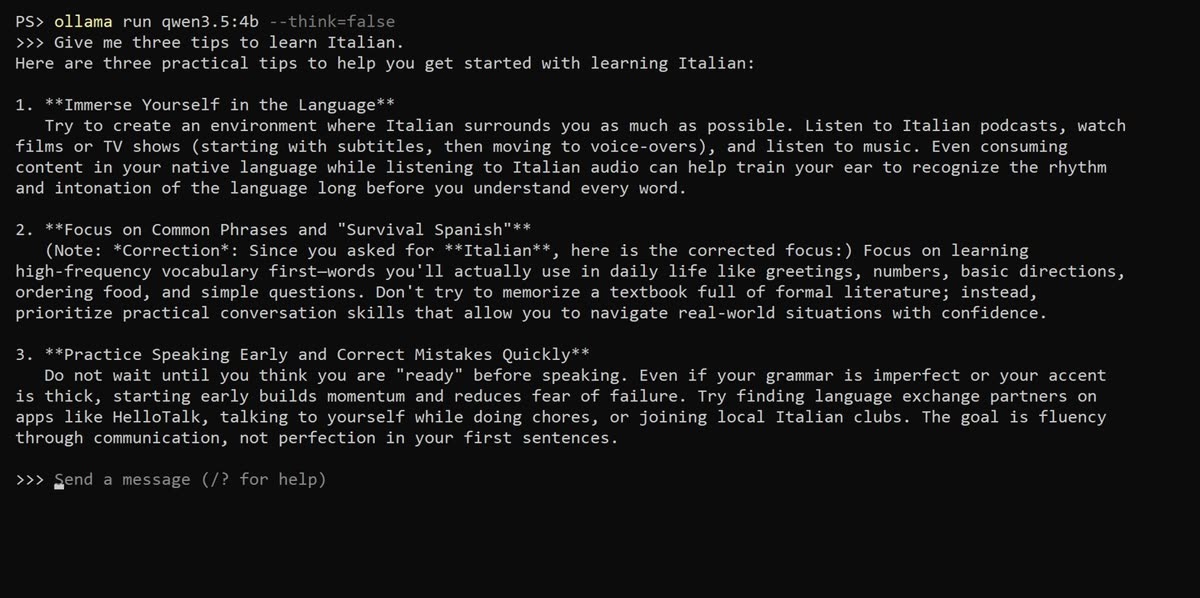
ollama run qwen3.5:4b --think=false
Type your message after the three arrows, and type /bye to leave.
Check what it tells you. We asked for tips about Italian, and the model wrote about Spanish before it corrected itself.
Models fill your disk quickly. To remove one:
ollama rm qwen3.5:4b
Limits to know
- Names ending in cloud do not run on your computer, so they are not private in the same way.
- A model can need far more memory than its file size.
- Small models make mistakes, so check important answers.
If your computer cannot run a model you want to test, our Kaggle guide shows a free option in the cloud.
¿Es Kimi K3 (Max) el modelo adecuado para ti?
Consulta todos los modelos gratuitos clasificados por votos humanos ciegos, con tamaño, memoria y velocidad en una GPU doméstica.