 FreeLLM
How to search your own files by meaning with Ollama, on your PC
Build a free tool that finds text files, photos and voice memos by meaning with Ollama and EmbeddingGemma 2. The full script, every command and where it failed.
A normal search looks for the exact words. If you search for "moving out" and your lease says "leaving the apartment", it finds nothing.
This guide builds a small tool that searches by meaning instead. It works on text files, photos and voice memos. It runs on your own computer with Ollama and EmbeddingGemma 2, a free model from Google.
We tested every step on 1 November 2026, on Windows 11 with Ollama 0.40.13 and Python 3.11.
In short
- You download one model of 1.3 GB and save one script of about 60 lines.
- In our 13 sample files, a normal search for "moving out" found nothing.
- The meaning search put the right file first for a lease question, a dog photo, a train ticket and a voice memo.
- Reading the 13 files took about 5 seconds, and each search about 0.05 seconds, on a fast PC.
- It missed one of our searches, and it always shows three results, even when nothing matches.
What you need
- Ollama. If you do not have it, follow our Ollama install guide.
- Python. It is free at python.org. The script needs no extra Python packages.
- 1.3 GB of free disk space for the model, and the internet to download it.
Step 1: Find the model
Go to ollama.com/library/embeddinggemma-2. This model does not chat. It turns each file into a long list of numbers, and files with a similar meaning get similar numbers.
The page lists several sizes. We use 740m, which is 1.3 GB. The table says text and image, but it also accepted audio in our test. We tested only this size.
Step 2: Download the model
Open PowerShell and check Ollama. You should see a version number.
ollama --version
Then download the model. On our connection it took less than a minute.
ollama pull embeddinggemma-2:740m
When you read the word success, the model is on your computer.
Step 3: Make a test folder
Start with a test folder, not with your real documents.
mkdir my-files
Copy a few files into it. We used 13 sample files: six text notes, five photos, one screenshot and one voice memo. The photo names, such as IMG_2042.jpg, say nothing about what is inside.
Step 4: Save the script
Open Notepad and paste this script. Choose Save as, set the type to All files, and save it as find.py next to the my-files folder.
"""Search a folder by meaning. Everything stays on this PC."""
import base64
import json
import math
import sys
import time
import urllib.request
from pathlib import Path

URL = "http://localhost:11434/api/embed"
MODEL = "embeddinggemma-2:740m"
INDEX = Path("index.json")
TEXT = {".txt", ".md"}
IMAGES = {".jpg", ".jpeg", ".png"}
AUDIO = {".wav", ".mp3"}


def embed(item):
    body = json.dumps({"model": MODEL, "input": [item]}).encode()
    request = urllib.request.Request(URL, body, {"Content-Type": "application/json"})
    with urllib.request.urlopen(request, timeout=120) as reply:
        return json.load(reply)["embeddings"][0]


def similarity(a, b):
    top = sum(x * y for x, y in zip(a, b))
    return top / (math.sqrt(sum(x * x for x in a)) * math.sqrt(sum(y * y for y in b)))


def build(folder):
    start = time.time()
    files = []
    for path in sorted(Path(folder).rglob("*")):
        kind = path.suffix.lower()
        if kind in TEXT:
            content = path.read_text(encoding="utf-8", errors="ignore")[:8000]
            item = f"title: {path.stem} | text: {content}"
        elif kind in IMAGES:
            item = {"image": base64.b64encode(path.read_bytes()).decode()}
        elif kind in AUDIO:
            item = {"audio": base64.b64encode(path.read_bytes()).decode()}
        else:
            continue
        files.append({"path": str(path), "vector": embed(item)})
        print("Read", path.name)
    INDEX.write_text(json.dumps(files))
    print(f"Done: {len(files)} files in {time.time() - start:.1f} seconds")


def search(question):
    start = time.time()
    query = embed(f"task: search result | query: {question}")
    files = json.loads(INDEX.read_text())
    ranked = sorted(files, key=lambda f: similarity(query, f["vector"]), reverse=True)
    for f in ranked[:3]:
        print(f"{similarity(query, f['vector']):.2f}  {Path(f['path']).name}")
    print(f"Search took {time.time() - start:.2f} seconds")


if sys.argv[1] == "index":
    build(sys.argv[2])
else:
    search(" ".join(sys.argv[1:]))
Look at the line that starts with URL. localhost means this computer, so the script sends your files only to Ollama on your own PC. It does not use any online service. We read this in the code, but we did not run a test with the network unplugged.
Step 5: Index your files
In PowerShell, go to the folder that holds find.py, then run this command.
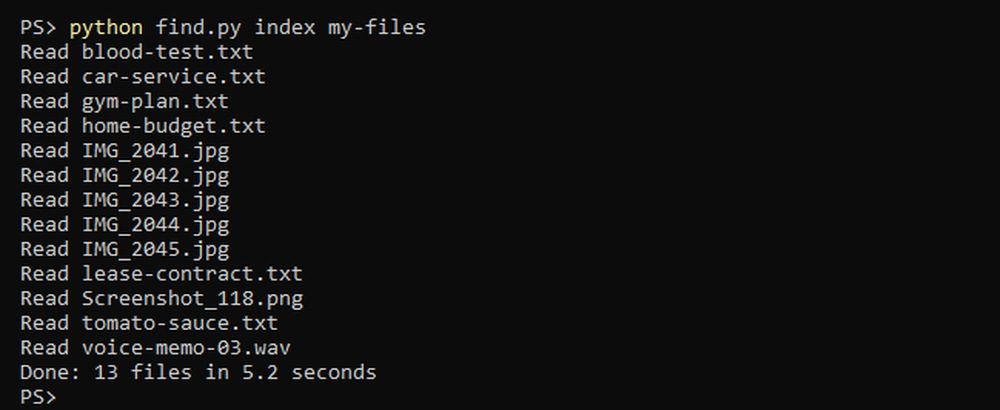
python find.py index my-files
Each file goes to the model, and the numbers are saved in a new file called index.json. Your original files do not change. The 13 files took 5.2 seconds here.
Step 6: Search by meaning
First, try a normal search. The first command looks inside the text files, and the second looks at the file names.
Select-String -Path my-files\*.txt -Pattern "moving out"
Get-ChildItem my-files -Filter "*moving*"
Neither command shows anything, because no file contains those words. Now search by meaning.
python find.py "how much notice before moving out"
The first result is the lease. That file says "leaving the apartment", not "moving out". The model matched the meaning, not the words.

It works on pictures too. We typed "my dog", and the first result was IMG_2042.jpg. That photo has no tags and no description.

Here are the searches that worked.
| What we typed | First result | Score |
|---|---|---|
| how much notice before moving out | lease-contract.txt | 0.70 |
| my dog | IMG_2042.jpg | 0.66 |
| what seat do I have on the train | Screenshot_118.png | 0.70 |
| water under the sink | voice-memo-03.wav | 0.73 |
| chiamare l'idraulico (Italian for "call the plumber") | voice-memo-03.wav | 0.71 |
The tool finds the file, but it does not answer the question. For the train search you still open the ticket and read the seat number. The voice memo has no written transcript, and the model works on the sound file itself.
Step 7: Read the scores
Do not trust the first result without looking at its score. The tool can fail.
- We searched for "a place to go hiking". Our photo of snowy mountains did not reach the top three, and all the scores were around 0.60.
- We searched for "learn to play the violin", and nothing in our folder is about that. The tool still showed three results, led by a train ticket at 0.57.
- We searched for only "moving out". The wrong file came first,
home-budget.txtat 0.63, so ask a full question.

In our small test, the correct first results scored at least 0.66, so treat anything lower as a guess. This comes from 13 files, and another folder may behave differently.
How fast it is
| Task | Radeon RX 7900 XTX | Ryzen 9 9950X3D alone |
|---|---|---|
| One text file | 49 ms | 266 ms |
| One photo | 197 ms | 1,647 ms |
With the graphics card we also read 137 articles from our site in 6.2 seconds. A search took between 0.03 and 0.06 seconds. These are fast parts, so a normal PC will be slower.
To see where the model runs, type this while it is loaded.
ollama ps
Under PROCESSOR you want to read 100% GPU. The SIZE column showed 486 MB of memory here.
Limits to know
- The script reads plain text, images and audio. It does not read PDF or Word files.
- It reads only the first 8,000 characters of a text file.
- After you add or change files, run the index again.
index.jsonholds the numbers and the paths of your files, so keep it private.- We tested WAV audio only. The script also accepts MP3, but we did not try it.
- We did not test video files or a whole hard disk.
Step 8: Remove everything
To remove the model, run this command.
ollama rm embeddinggemma-2:740m
Then delete the index. Your own files stay where they are.
Remove-Item index.json
To go further, our guide on how much GPU memory you need helps you choose hardware for local AI.
About the sample files. The train ticket is one we made, and the voice memo uses a generated voice. The five photos are CC0 images from Wikimedia Commons: lighthouse, dog, pizza, bicycle and mountains.


Is Kimi K3 (Max) the right model for you?
See every free model ranked by blind human votes, with size, memory and speed on a home GPU.